System Configuration Diagram Screen Operation Instruction
1. SCREEN CONFIGURATION
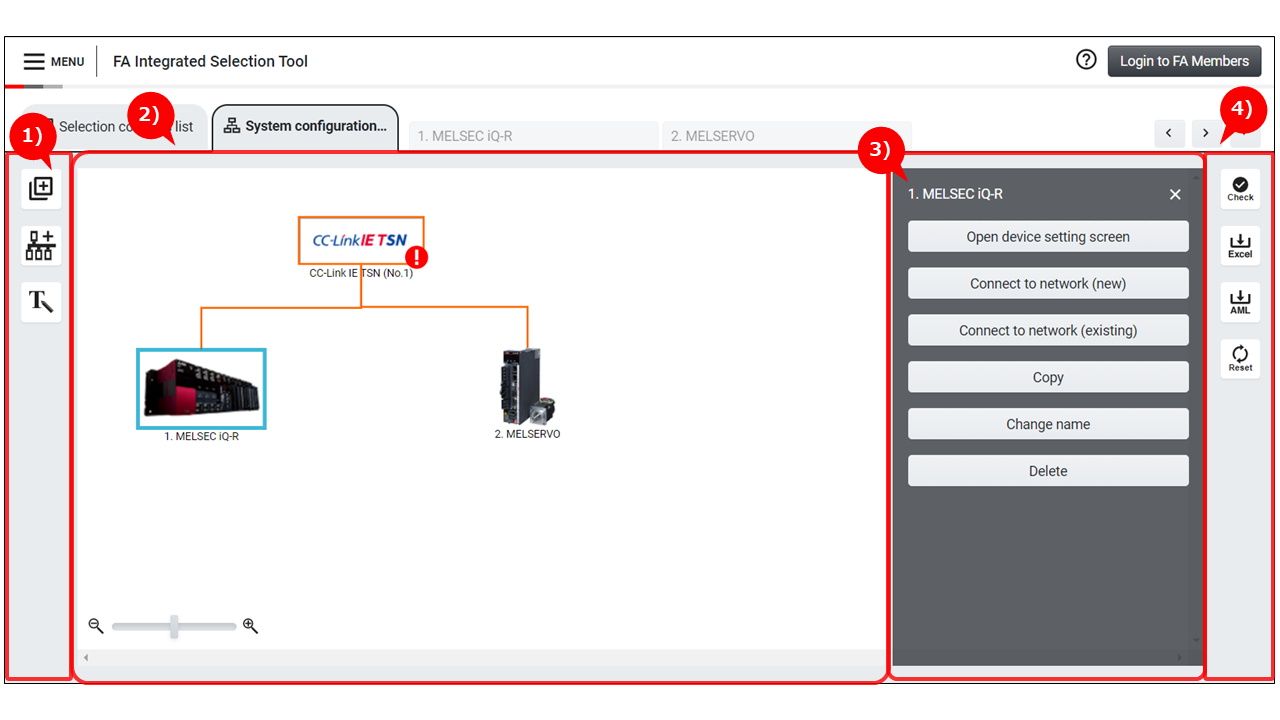
1) Addition button
Buttons to add devices and networks to the system configuration diagram are displayed.
| Display item | Description |
|---|---|

|
Adds a new device to the system configuration diagram. |

|
Adds a new network to the system configuration diagram. |

|
Adds shapes such as speech bubbles, arrows, and texts. |
2) System configuration diagram
Create a system configuration diagram by placing icons of devices and networks.
Each icon can be arranged freely by dragging and dropping.
| Display item | Description |
|---|---|
|
Device icon Jump to the selection screen of each device and network connection can be performed from the drawer menu displayed by clicking the icon. |

|
Network icon Addition of connected devices, network settings, and selection of optional items can be performed from the drawer menu displayed by clicking the icon. |

|
Indicates condition of connection between device and network. Broken line: Temporary connection. Selection of the destination device must be completed. Solid line: Destination device is selected, and connection is established. Line color differs for each network type. ━ CC-Link IE TSN, Field, Control ━ CC-Link ━ CC-Link IE Field Basic, Ethernet ━ Other than the above (SSCNETⅢ, RS-232, RS-422/485, Pulse line, USB, BACnet/IP, CANopen, EtherNet/IP, DeviceNet, PROFIBUS, GP-IB) |
3) Drawer menu
Operations corresponding to each icon can be performed.
| Target icon | Menu | Description |
|---|---|---|
| Device | Open device setting screen |
Jumps to the device selection screen. * Same operation can be performed by double-clicking a device icon. |
| Device | Connect to network(new) | Adds a new network icon to the system configuration diagram and connects to it. * Displayed only for devices which can connect to networks. |
| Device | Connect to network(existing) | Connects to a network icon existing in the system configuration diagram. * Displayed only for devices which can connect to networks. |
| Device | Copy | Adds a copy of the selected device. * The connection information to network icons are not copied. |
| Device | Change name | The name of device can be changed. |
| Device | Delete | The name of device can be changed.Deletes an icon from the system configuration diagram and discards the selections. |
| Network | Add device | Adds a new device icon to the system configuration diagram and connects to it. |
| Network | Network settings | Displays a screen to perform network settings such as No., station type of each device, and number of link points. * Configurable items vary by network type. |
| Network | Option item selection | Displays a screen to select optional network-related items such as network cables and hubs. |
| Network | Delete | Deletes an icon from the system configuration diagram and discards the selections. * Selections of network-related optional items are discarded as well. |
| Connection line | Delete | Disconnects a network connection. |
| Text | Edit text | Displays a screen to change the text, text size, and text color. |
4) Auxiliary button
Various buttons for checking and resetting selections are displayed.
| Display item | Description |
|---|---|
| Verifies integrity of the entire system. | |
| Selection results can be output in Excel format. Devices to be output can be specified. |
|
| Outputs selection results in AML format. Output file can be imported with MELSOFT Navigator. |
|
| Discards the selections to restart the selection from the beginning. * Note that all the selected devices and networks will be discarded. |
2. OPERATION PROCEDURE
Step 1: Adding devices
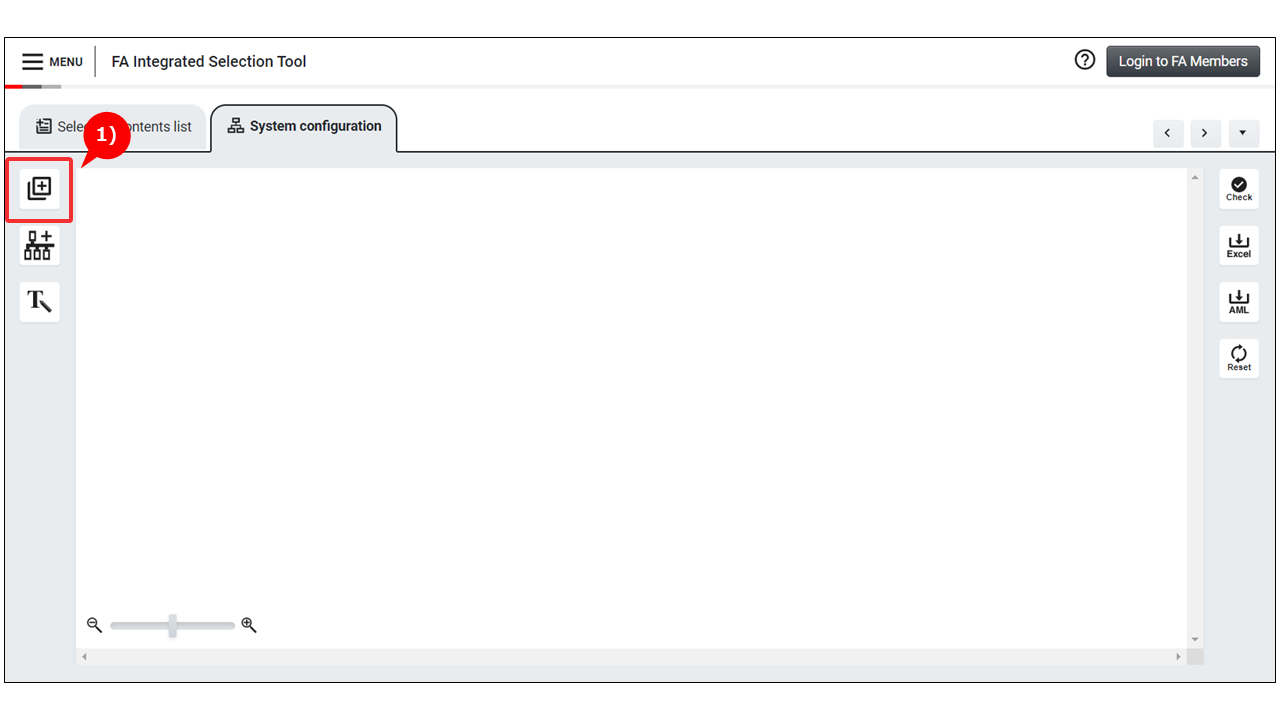
1) Click the Add devices button.
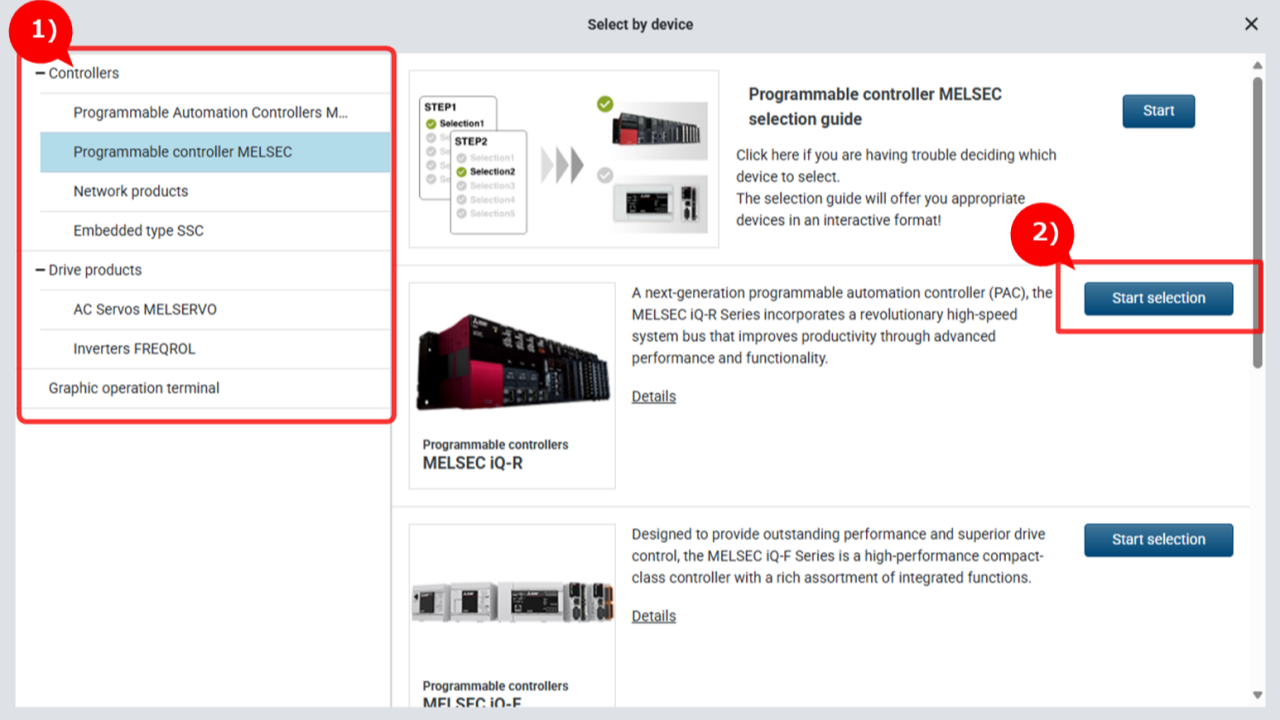
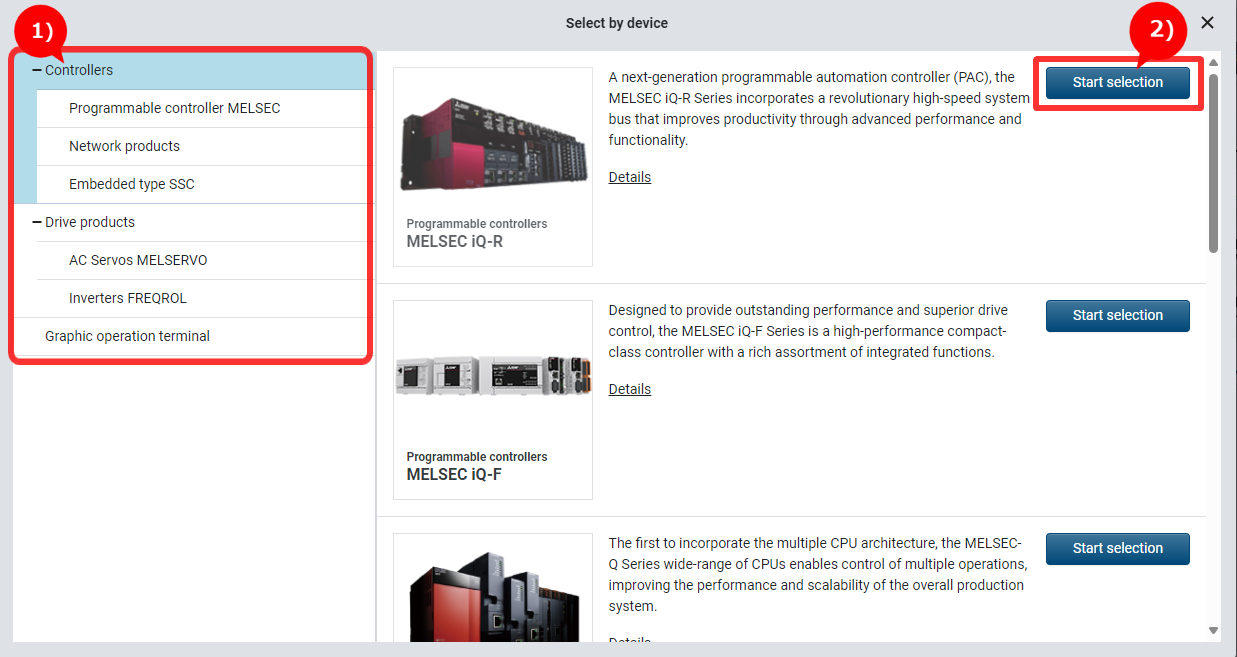
1) Specify a category of device to be added.
2) Click the "Start selection" button of a device to be added.
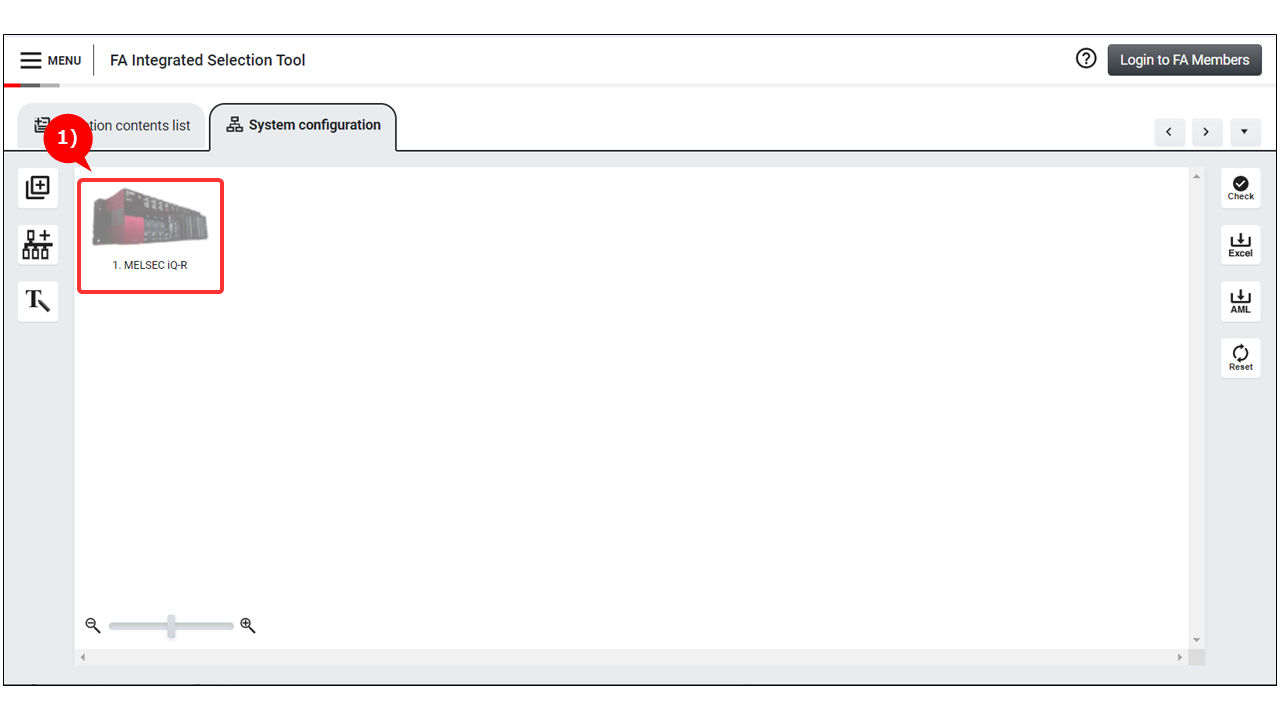
1) An icon of the selected device is added.
Step 2: Adding networks
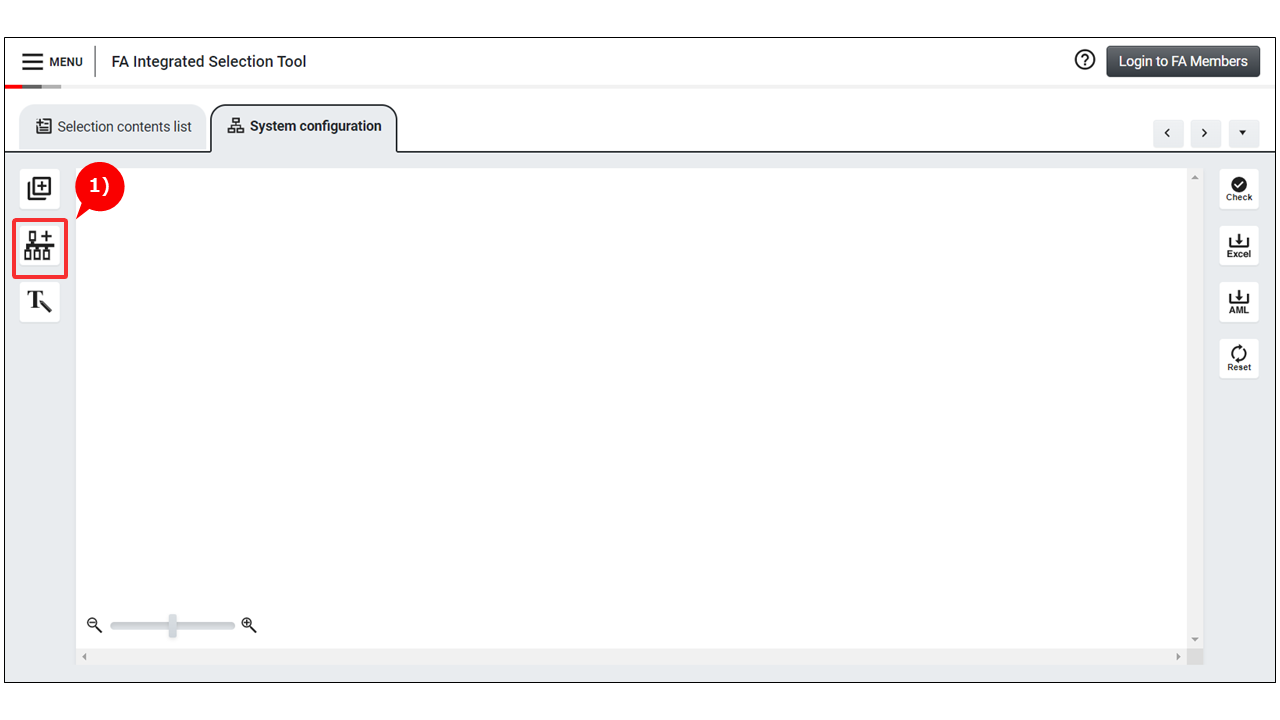
1) Click the Add network button.
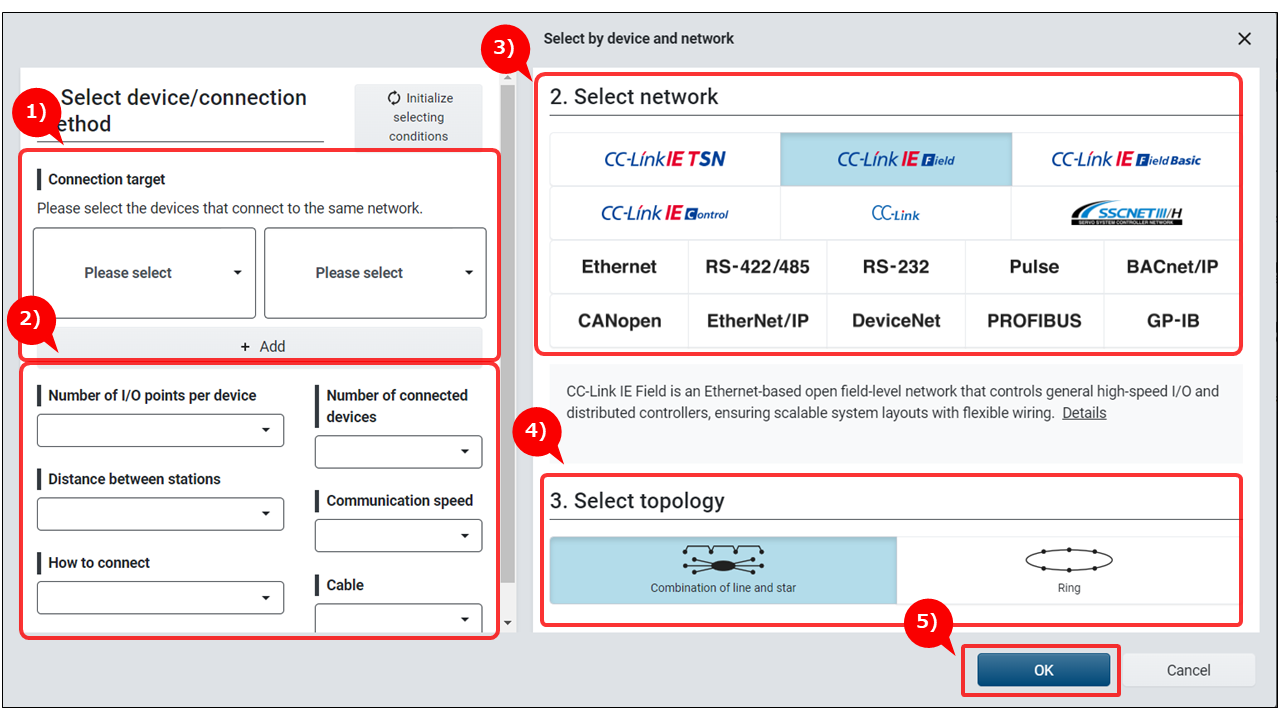
1) Select devices to be connected to the network. Connectable networks are narrowed down according to the selected devices.
* When devices are selected, a network is added to the system configuration diagram with the selected devices connected.
* If a target network is known, the procedure can be started from 3).
2) Target networks can be narrowed down by specifying conditions such as the number of input/output points per device and number of connectable devices, and points of selection.
* If a target network is known, the procedure can be started from 3).
3) Select a network to be added.
4) Select topology of a network to be added.
* This item is not displayed for networks which do not require topology selection.
5) Click the OK button.
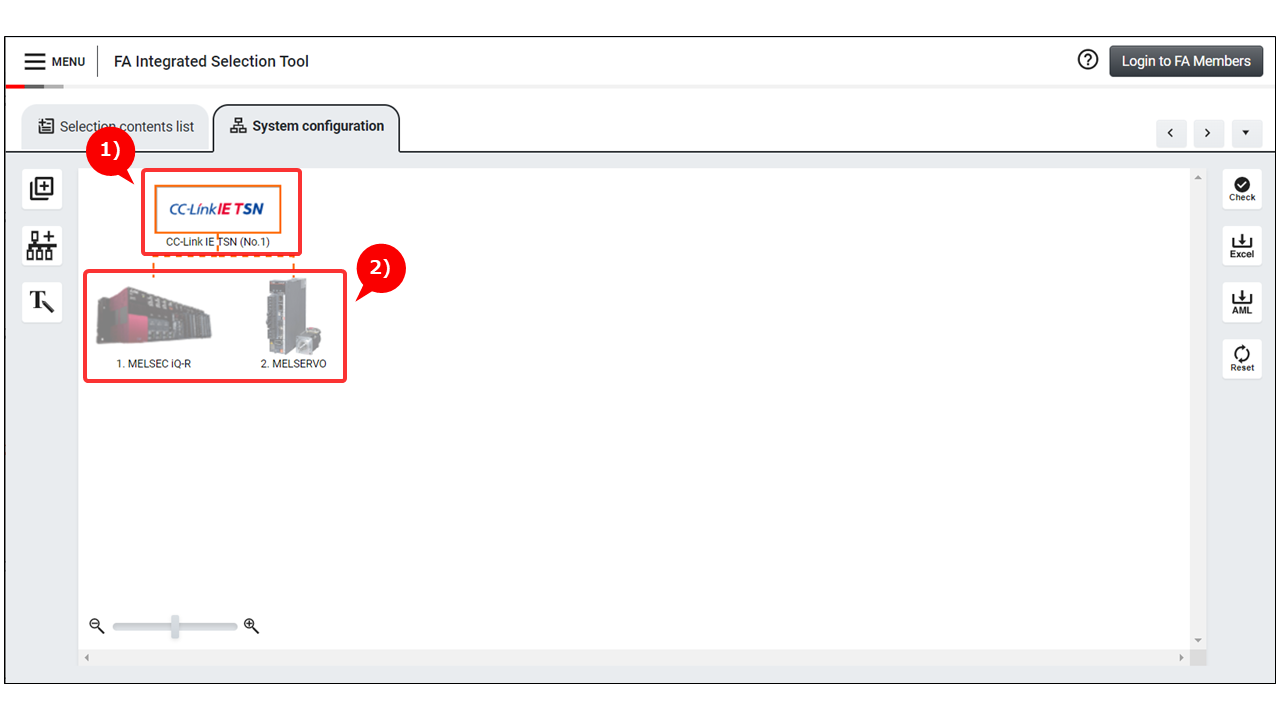
1) An icon of the selected network is added.
2) When devices to be connected to a network are selected, a network is added with the target devices connected.
Step 3: Selecting devices
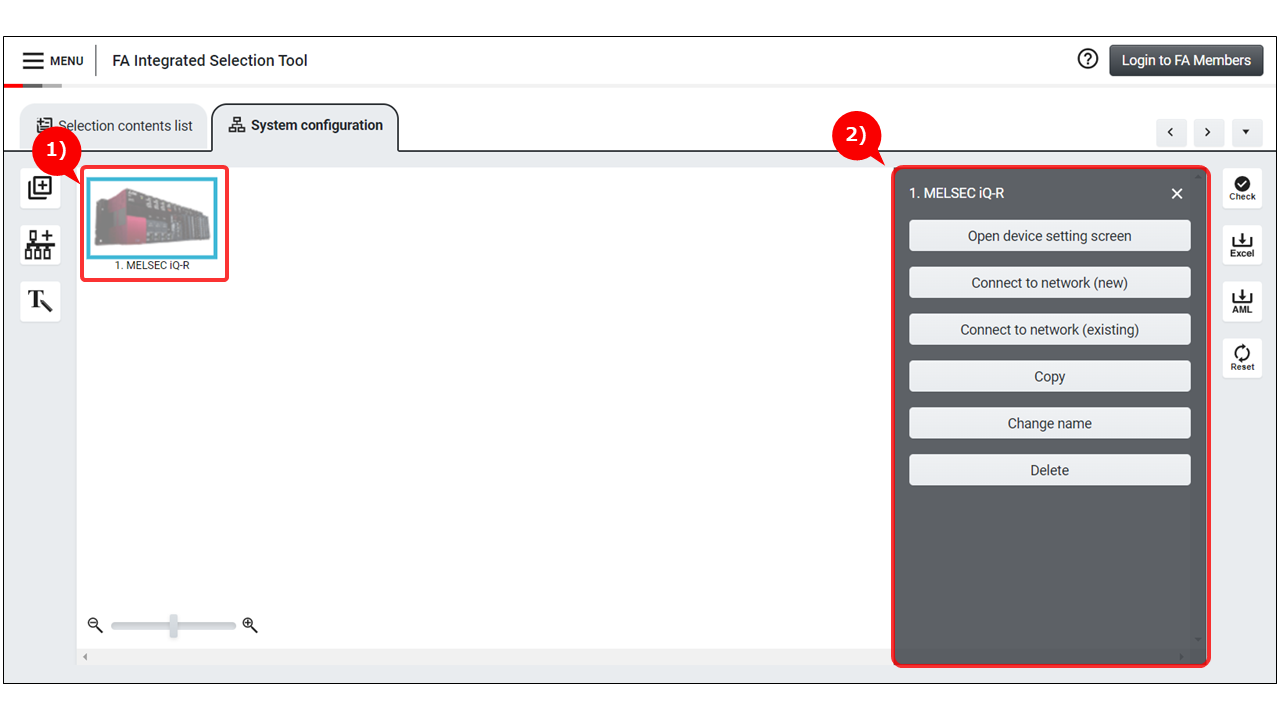
1) Click the device icon.
2) Click the "Open device setting screen" button from the drawer menu.
* Same operation can be performed by double-clicking a device icon.
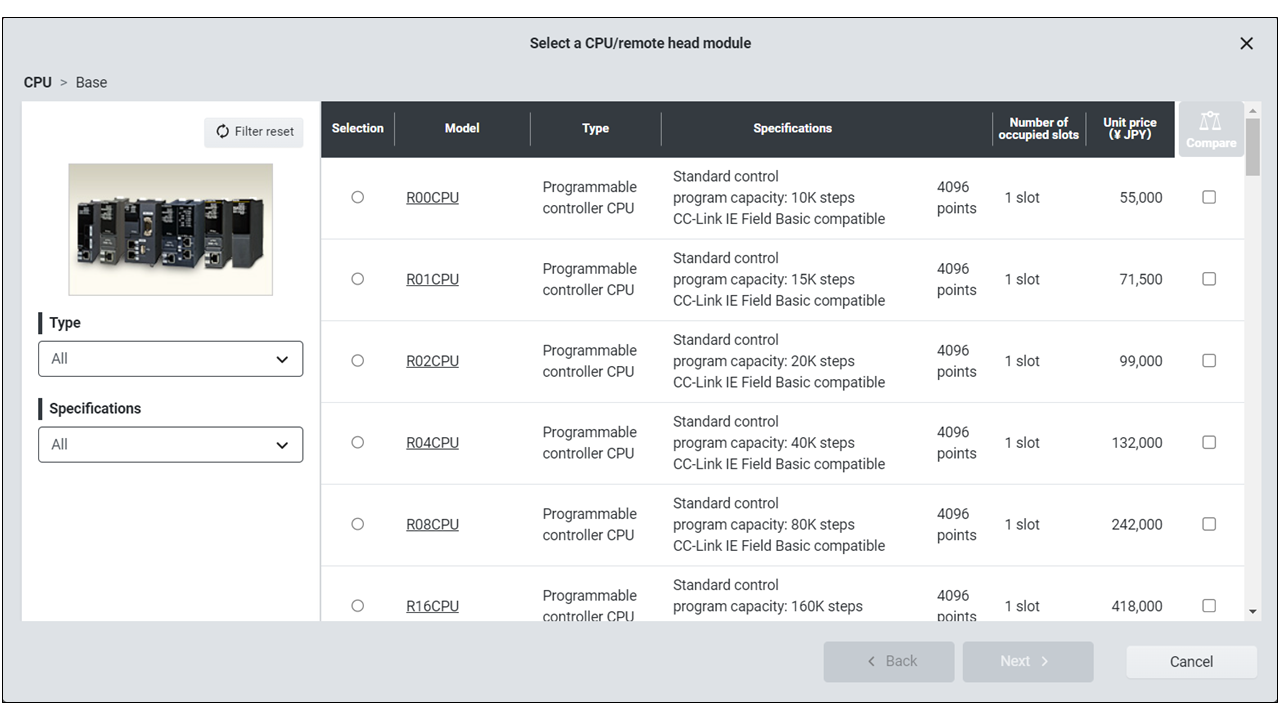
1) Selection window of the selected device appears. Perform the selection process.
* For details of selection methods, refer to the help of each device.
Step 4: Connecting devices to a new network
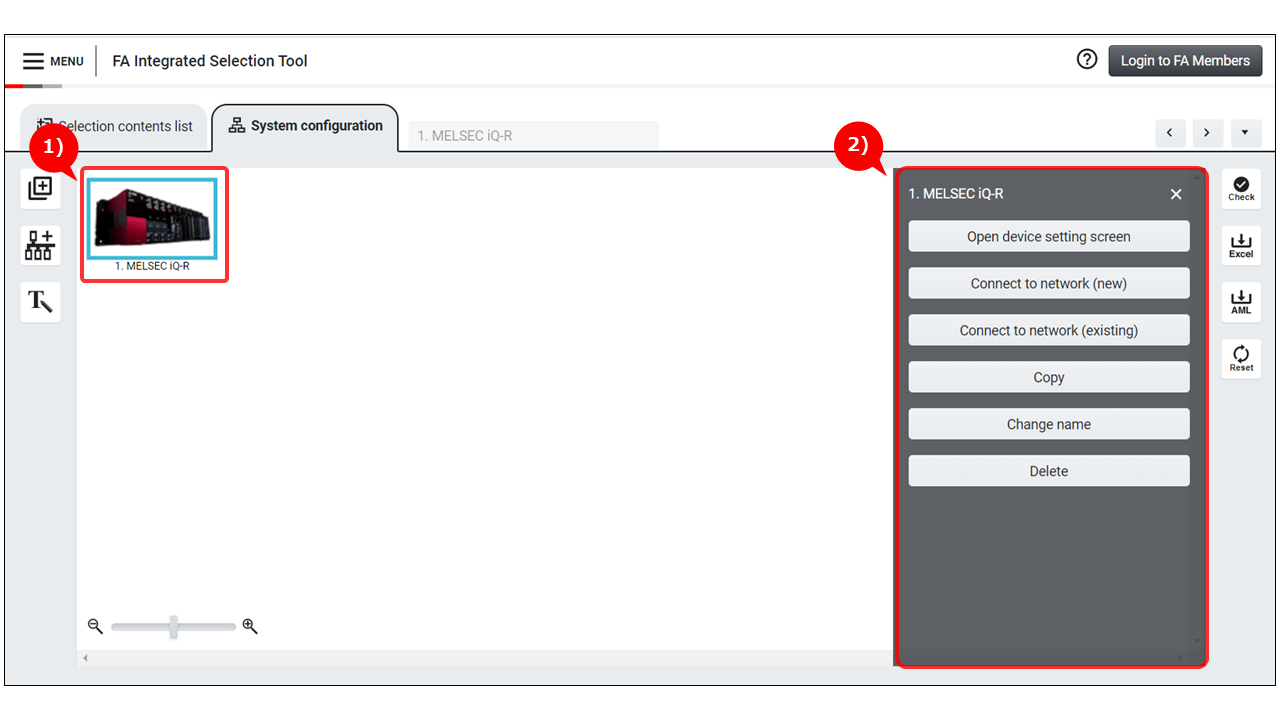
1) Click an icon of the device to be connected to the network.
2) Click the "Connect to network (new)" button from the drawer menu.
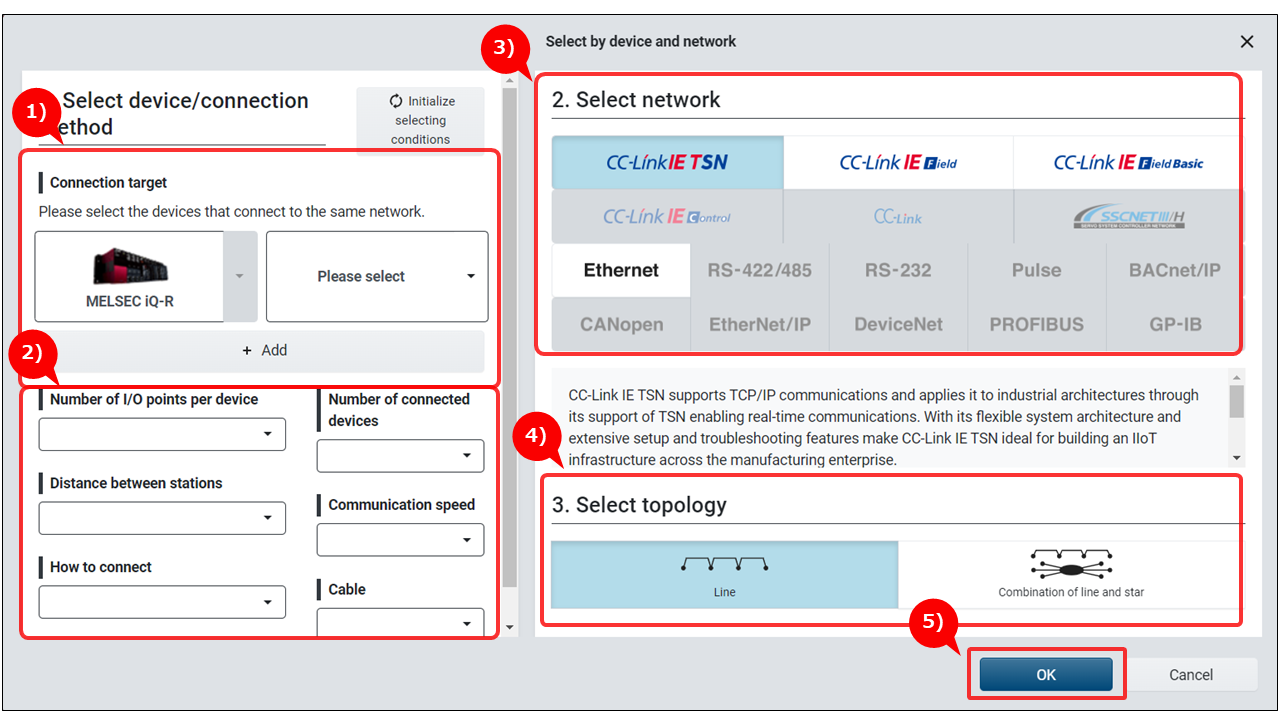
1) Select devices to be selected to the same network. Connectable networks are narrowed down according to the selected devices.
* When devices are selected, a network is added to the system configuration diagram with the selected devices connected.
* If there is no other devices to be connected, the procedure can be started from 3).
2) Target networks can be narrowed down by specifying conditions such as the number of input/output points per device and number of connectable devices, and points of selection.
* If a target network is known, the procedure can be started from 3).
3) Select a network to connect the devices.
4) Select topology of a network to connect the devices.
* This item is not displayed for networks which do not require topology selection.
5) Click the OK button.
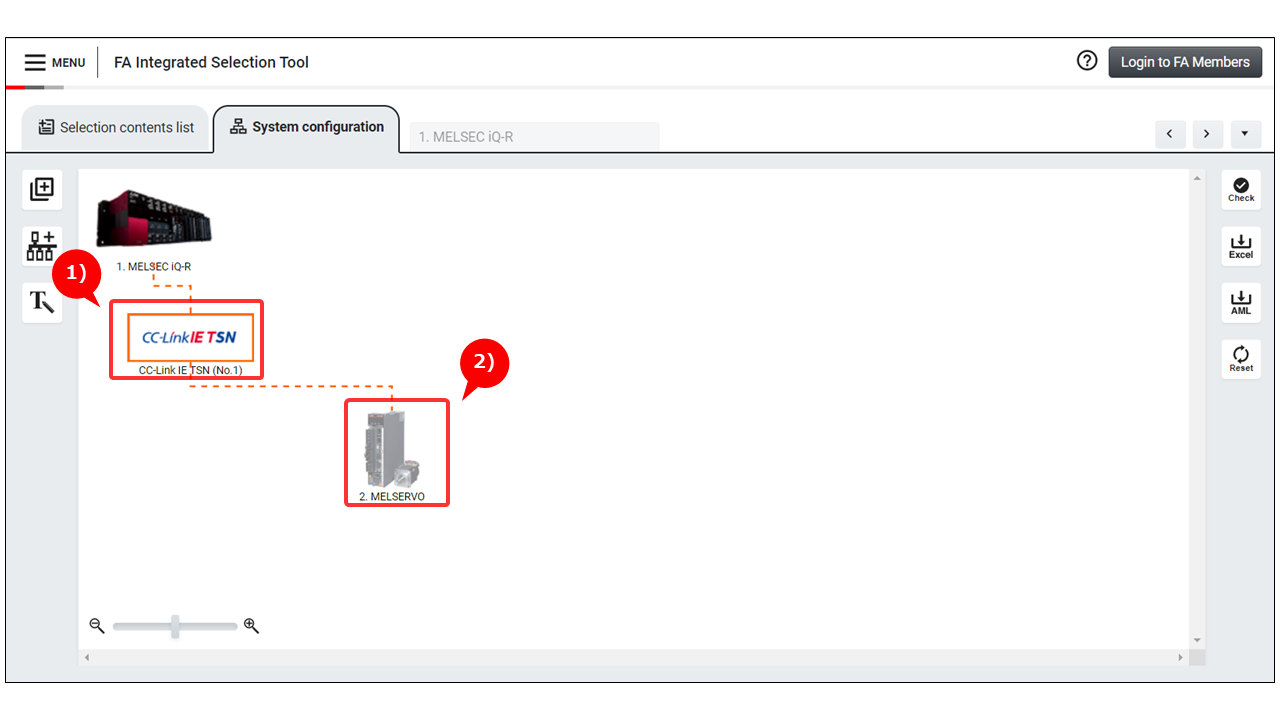
1) The selected network is added and connected.
2) When devices to be connected to the same network are selected, a network is added with the target devices connected.
Step 5: Connecting devices to networks existing on the system configuration diagram
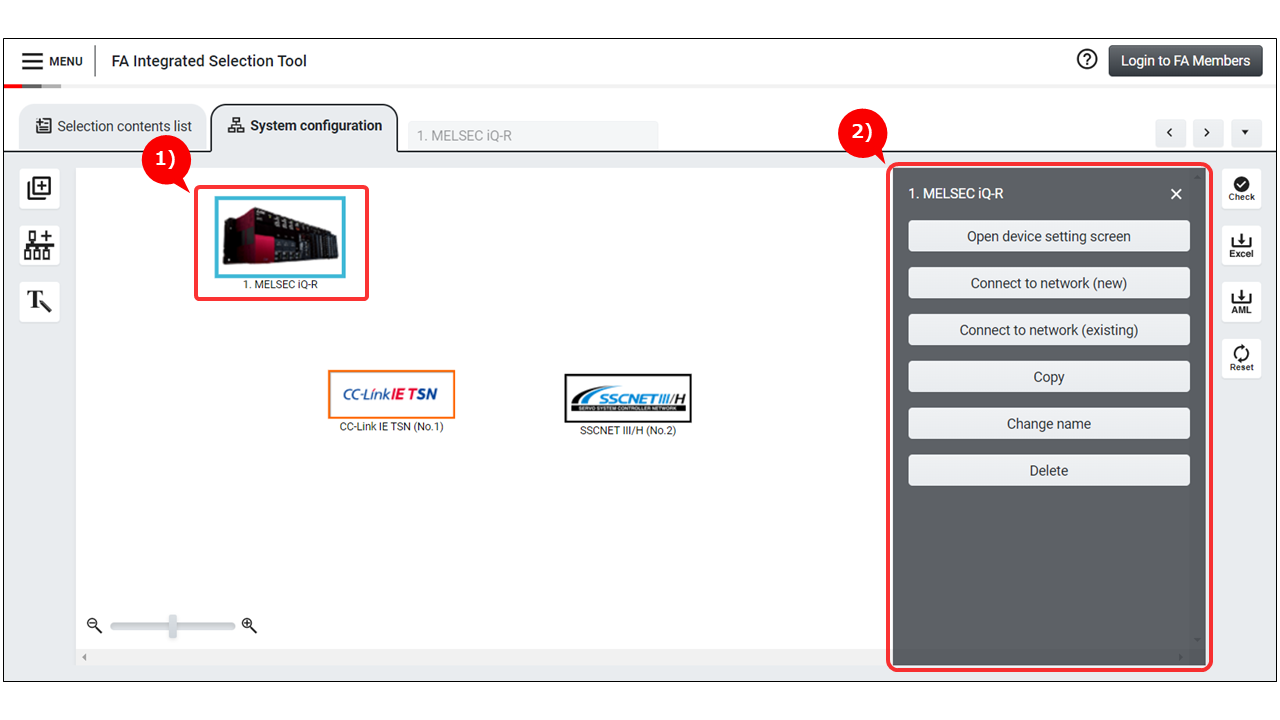
1) Click an icon of the device to be connected to the network.
2) Click the "Connect to network (existing)" button from the drawer menu.
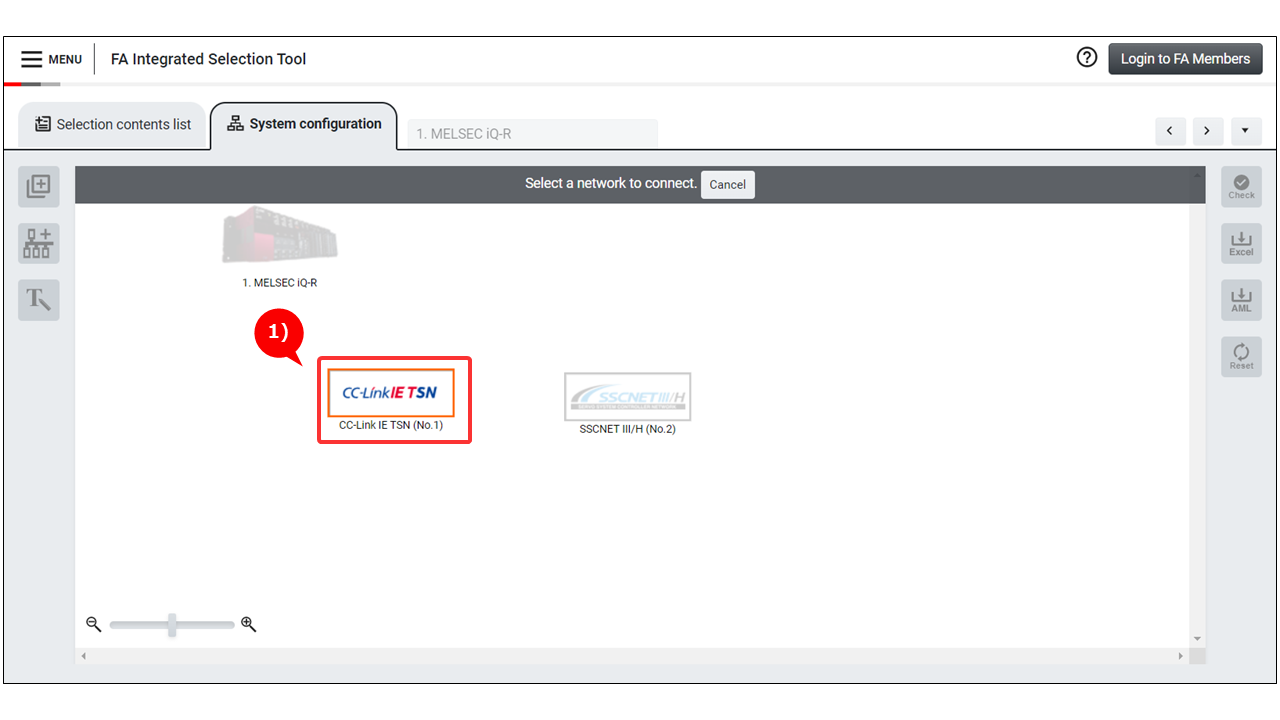
1) Click an icon of the network to be connected.
* Only connectable networks can be clicked.
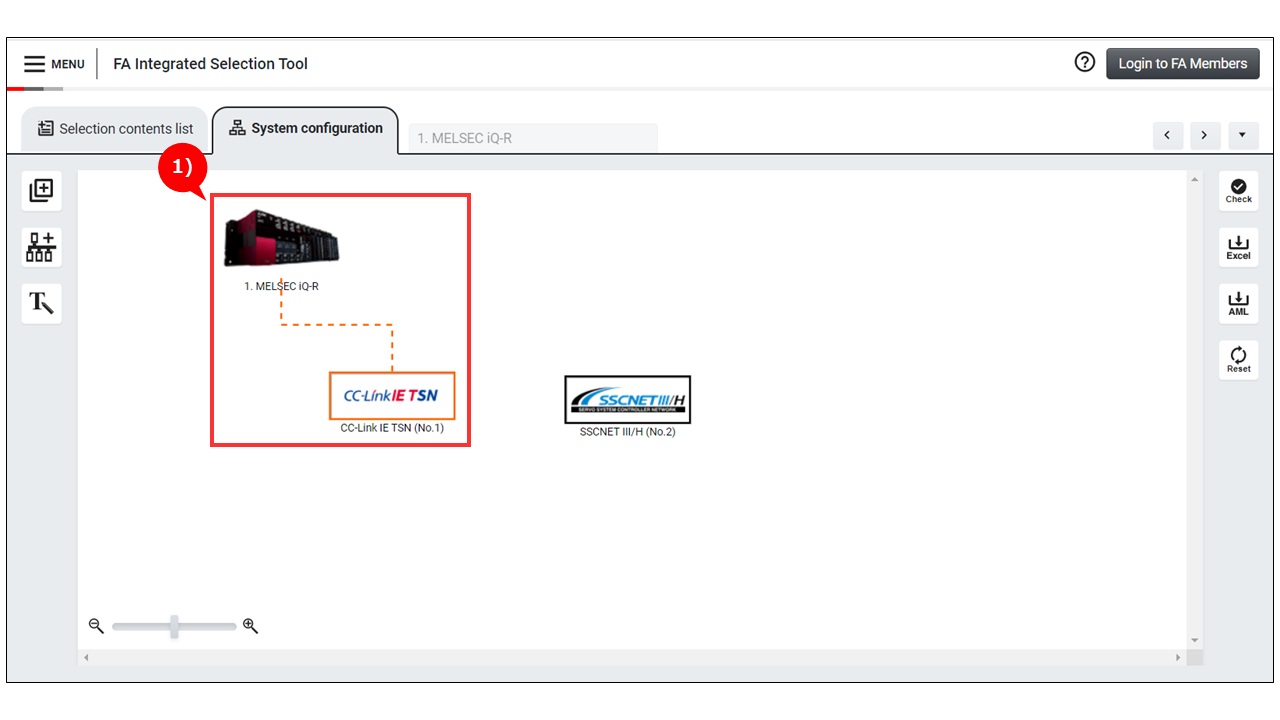
1) The selected network is connected.
Step 6: Network settings
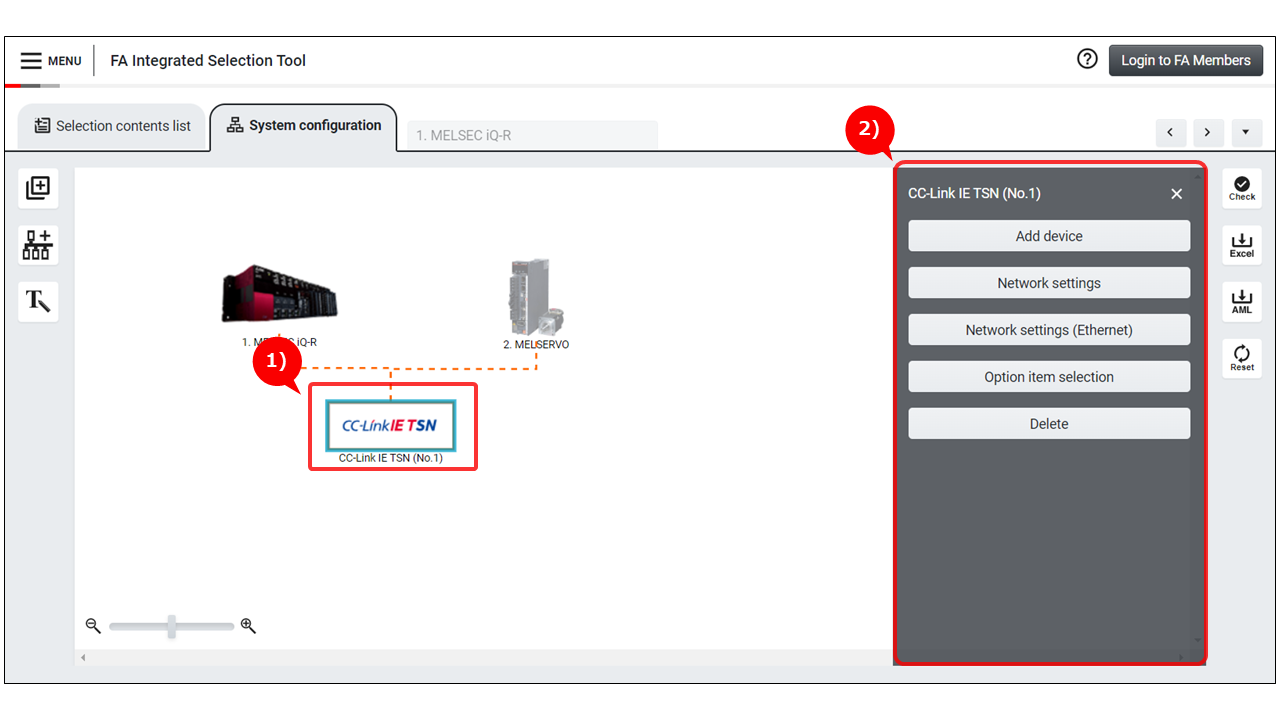
1) Click a network icon.
2) Click the "Network settings" button from the drawer menu.
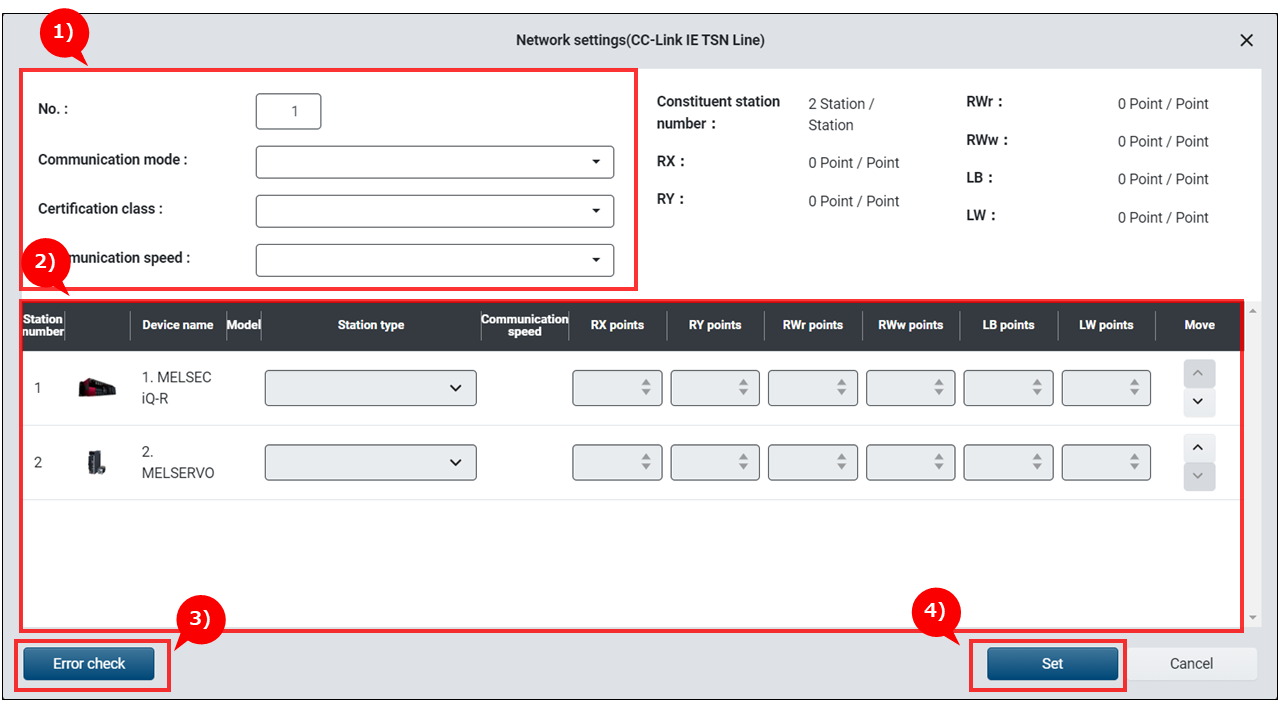
1) Configure settings regarding the whole network, such as No. and communication mode.
* Configurable items differ by network type.
2) Configure settings of each device, such as station type and number of link points.
* Configurable items differ by network type.
3) Click the Error check button to verify the configured settings.
4) Click the Set button.
Step :7 Network option selection
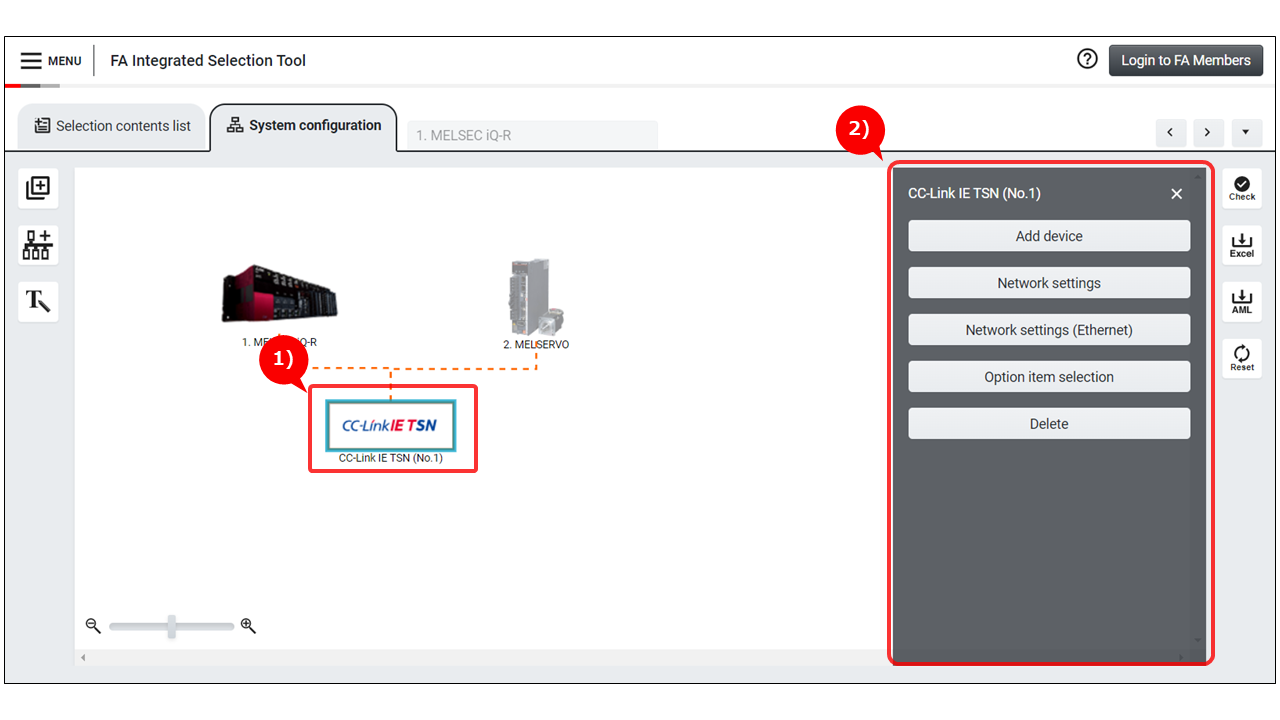
1) Click a network icon.
2) Click the "Option item selection" button from the drawer menu.
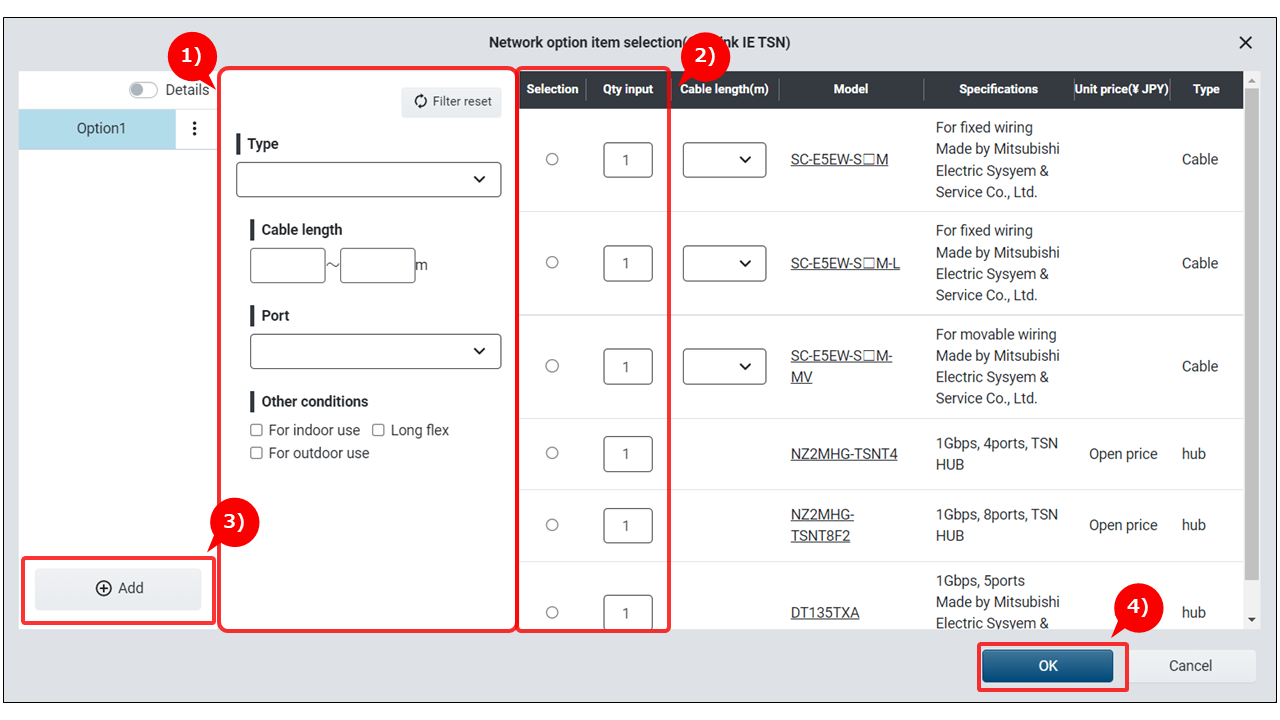
1) Specify the conditions for filtering optional items.
2) Select devices. Numbers can also be selected.
3) To add more optional items, click the Add button. * Repeat the steps 1) and 2) for the added items.
4) Once the selection is complete, click the OK button.